Minecraft is well-known for being playable on a wide array of graphics hardware, but that doesn’t mean that the occasional hiccup doesn’t happen.
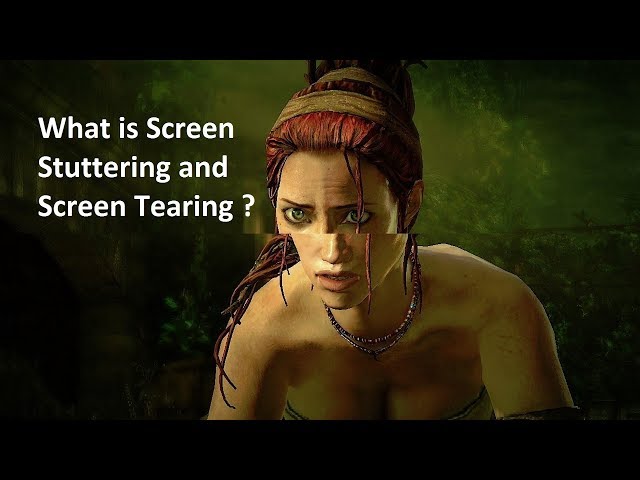
One issue some players may encounter with higher resolution or higher refresh rate monitors is the optical problem of screen tearing. This problem occurs when a game draws a screen frame and displays multiple frames, causing small lines of distortion to appear on various parts of the screen, sometimes off-center with the rest of the display. This is often caused by the game and the monitor having different refresh rates. Fortunately, this is easily addressed in Minecraft through the VSync graphical setting.
Minecraft: How to activate V-Sync
.</figcaption></figure>
<p>By applying VSync in their <a href=) video settings, Minecraft players should be able to eliminate any screen tearing artifacts present on their screens. VSync will “sync” Minecraft’s framerate to the current monitor’s refresh rate, preventing the platform’s hardware from drawing and displaying multiple frames’ worth of information in one frame. This can be implemented by changing a user’s graphics card settings, but enabling VSync in Minecraft itself should suffice as long as the player’s graphics card settings aren’t forcing VSync to behave a certain way.
video settings, Minecraft players should be able to eliminate any screen tearing artifacts present on their screens. VSync will “sync” Minecraft’s framerate to the current monitor’s refresh rate, preventing the platform’s hardware from drawing and displaying multiple frames’ worth of information in one frame. This can be implemented by changing a user’s graphics card settings, but enabling VSync in Minecraft itself should suffice as long as the player’s graphics card settings aren’t forcing VSync to behave a certain way.
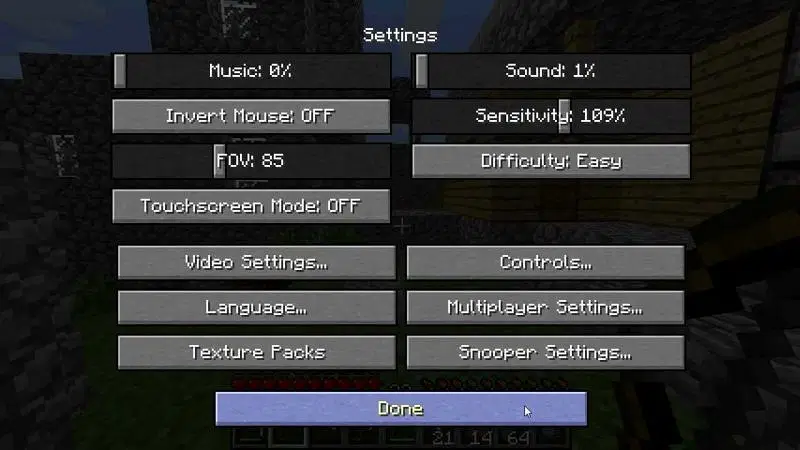
Minecraft keeps its graphics settings in one convenient place, and enabling VSync is no problem at all and can be done in seconds. The process of enabling VSync can be found below:
Also Read
- Access the options menu either in-game or from the main menu.
- Select the “video settings” button.
- In the top right, there should be a slider underneath the Render Distance slider that says “Max Framerate,” slide this slider all the way to the left, and the framerate indicator should change from a number to “VSync.”
- Select the “Done” button in the options menu and boot up a single-player or multiplayer Minecraft world.
- Screen tearing should no longer be present.
Keep in mind, however, that using VSync locks the framerate to the monitor’s refresh rate. For example, if Minecraft players are playing at 120 FPS and enable VSync on a 60Hz monitor, the frames per second will be locked to 60, meaning a significant drop in frames compared to before. This exact issue is what causes screen tearing in the first place when a graphics processing unit (GPU) is displaying frames too quickly compared to what the monitor is capable of keeping up with.
Latest Minecraft updates now on your Facebook timeline. Check out here!


