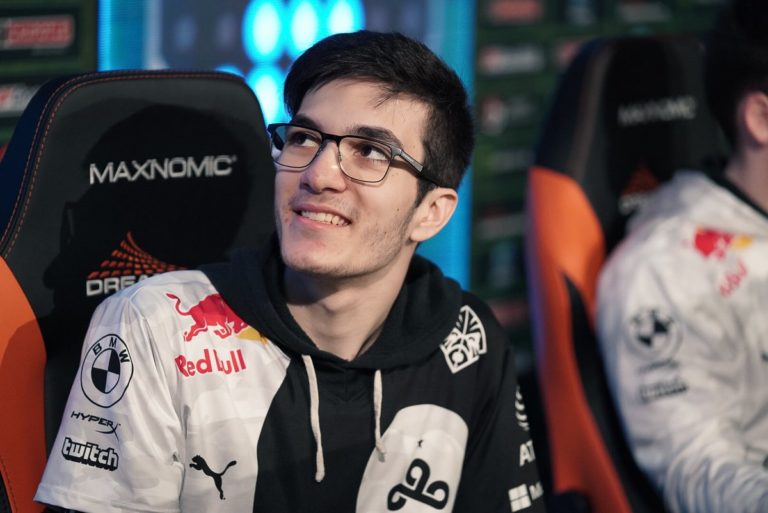
Mariano “SquishyMuffinz” Arruda is a professional Rocket League player from North America.
Almost all Rocket League players will have moments when they’re on fire. Hitting every shot in the most optimal way possible while not leaving any openings on the defensive side can net you a few wins, but you’ll need to do that on a consistent basis to rise above the rest. Consistency in the long run will outweigh shiny plays from time to time, and Squishy is a nice example of that.
Squishy’s consistent and reliable gameplay turns him into a rock that his teammates can always count on. If you’re looking to get better at Rocket League, learning the steps from a player like Squishy can only lead you in the right direction. After breaking into the competitive Rocket League scene, Squishy played for names like Iris, Cloud9, and NRG. He also built relatively successful YouTube and Twitch channels in the process.
As you start practicing Rocket League, you’ll want to optimize your settings as much as possible to build your muscle memory once and for all. Making further adjustments down the line is always acceptable, but starting with the right configurations can save you time in the future. Though most settings tend to depend on personal preference, checking out what a professional player prioritizes can help you make up your mind while finalizing your own setup.
Considering Squishy’s track record, it wouldn’t be wrong to assume that he might have figured out what works for him and his vision can also help you do the same.
Here are Squishy’s camera settings for Rocket League.
Squishy’s gameplay settings
If you have a decent internet connection, you’ll want to set your Client Send Rate, Server Send Rate, and Bandwith Limit settings to high like Squishy. This will decrease your ping while also eliminating packet loss.
If you experience any latency issues with the following adjustments, it’ll indicate that you might not have a powerful enough connection to support the high client and server rates. When that’s the case, you’ll benefit more from turning down your connection settings.
Squishy only disables voice chat when he’s streaming, recording, or looking to completely focus in a ranked match.
| Text Chat | Allow All | Voice Chat | Disabled |
| Splitscreen Layout | Vertical | Cross-platform play | On |
| Client Send Rate | High | Server Send Rate | High |
| Bandwith Limit | High | Input Buffer | Legacy |
| Show Competitive Divisions | On | Show Extra Mode Ranks | On |
| Game Stat Display Level | Main Stats Only |
Squishy’s camera settings
Though camera settings are mostly up to personal preference, the professional players might have stumbled upon a healthy formula that allows them to perform better. Squishy’s camera settings are almost identical to the general average of the scene, but the main takeaway will be his Camera Shake preference.
Camera Shake makes Rocket Leagıe more thrilling since the game will be able to amplify exciting moments with the shaking animation. It’s one of the most disruptive configurations in the game, though, since you’ll lose you clear view on the field when the screen shakes.
| Camera Preset | Custom | Camera Shake | Off |
| Field of View | 110 degrees | Camera Distance | 270 |
| Height | 110 | Angle | -4 |
| Stiffness | 0.40 | Swivel Speed | 4.70 |
| Transition Speed | 1.20 | Invert Swivel | Off |
Squishy’s control settings
| Steering Sensitivity | 1.30 | Aerial Sensitivity | 1.30 |
| Controller Deadzone | 0.05 | Dodge Deadzone | 0.70 |
| Controller Vibration | Disabled | Vibration Intensity | 0 |
| Ball Camera Mode | Toggle | Push to Talk | On |
| Drive Forward | R2 | Drive Backwards | L2 |
| Steer Right | Left Movement Stick- Right | Steer Left | Left Movement Stick – Left |
| Jump | X | Boost | Circle |
| Powerslide | L1 | Air Roll | L1 |
| Focus on Ball | Triangle | Rear View | R3 |
| Air Steer Right | Left Movement Stick – Rigt | Air Steer Left | Left Movement Stick – Left |
| Air Pitch Up | Left Movement Stick – Up | Air Pitch Down | Left Movement Stick – Down |
| Air Roll Right | Square | Air Roll Left | Unbound |
| Skip Replay | X | Camera Swivel Up | Right Movement Stick – Up |
| Camera Swivel Down | Right Movement Stick – Down | Camera Swivel Right | Right Movement Stick – Right |
| Camera Swivel Left | Right Movement Stick – Left | Scoreboard | R1 |
| Skip Music Track | R3 | Voice Chat | R1 |
| Select Music Playlists (Hold) | R3 |
Squishy’s interface settings
| Interface Scale | 87 percent | Display Scale | 95 percent |
| Nameplate Scale | 100 percent | Nameplate Mode Default | Default |
| Match Notifications | Time Updates Only | Connection Quality Indicators | On |
| Color Blind Mode | Off | Force Default Team Colors | Off |
| Show Rocketids | On | Notifications During Gameplay | On |
| Team Colored Boost Meter | Off | Metric | Off |
| Ball Cam Indicator | Off | Ball Arrow | On |
| Performance Graphs | None |
Squishy’s video settings
Rocket League doesn’t require a state-of-the-art gaming PC to run smoothly. Despite having access to powerful hardware, professional players still prefer keeping their settings at the lower end of the spectrum.
The main reason behind this is to maximize their frames per second (FPS) during gameplay. Higher frames allows players to take advantage of their monitors’ refresh rates. Reducing some of the eye-candy features like Bloom, Lens Flares, and Motion Blur will also reduce the number of distractions on the field.
| Resolution | 1920×1080 (16:9) | Display Mode | Fullscreen |
| Vertical Vsync | Off | Anti-aliasing | Off |
| Render Quality | High Quality | Render Detail | Custom |
| Max FPS | 250 | Texture Detail | High Performance |
| World Detail | Performance | Particle Detail | Performance |
| High Quality Shaders | Off | Ambient Occlusion | Off |
| Depth of Field | Off | Bloom | Off |
| Light Shafts | None | Lens Flares | Off |
| Dynamic Shadows | Off | Motion Blur | Off |
| Weather Effects | Off | Transparent Goalposts | On |


