Fortnite is one of the most popular games available, with millions of people tuning in to play every day. You can play Fortnite on myriad platforms, although it’s no longer playable natively on Apple’s iPhone.
Fortunately, it’s still possible to play Fortnite on your iPhone thanks to Xbox Cloud Gaming. This can be done without needing to download or even pay for the game, as long as you have a strong internet connection.
If you’re interested in how to play Fortnite on your iPhone, make sure you keep reading.
What we used
- We used an iPhone 13 Pro running Safari and with a Microsoft account
The Short Version
- Click on the Safari app
- Click on the search bar
- Type in xbox.com/play and press Enter
- Click on Fortnite
- Press Get Ready to Play
- Click the Share button
- Press Add to Home Screen
- Press Add
- Enter the Cloud Gaming app
- Press Sign in
- Sign into your Microsoft account
- Press Play
-
Step
1Click on the Safari app
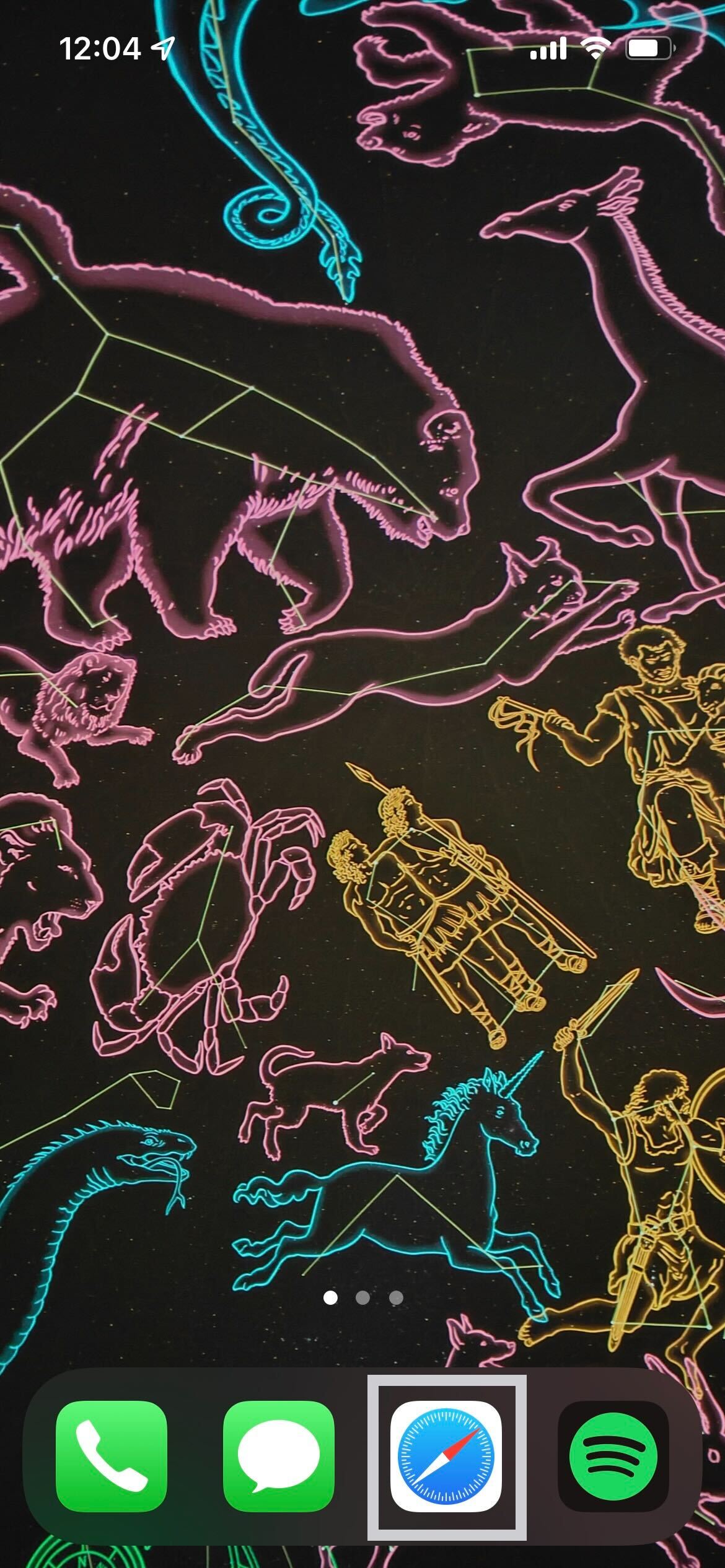
Open your iPhone and open your Safari or Google app to start. The app choice does not matter provided you can access the internet.
-
Step
2Click on the search bar
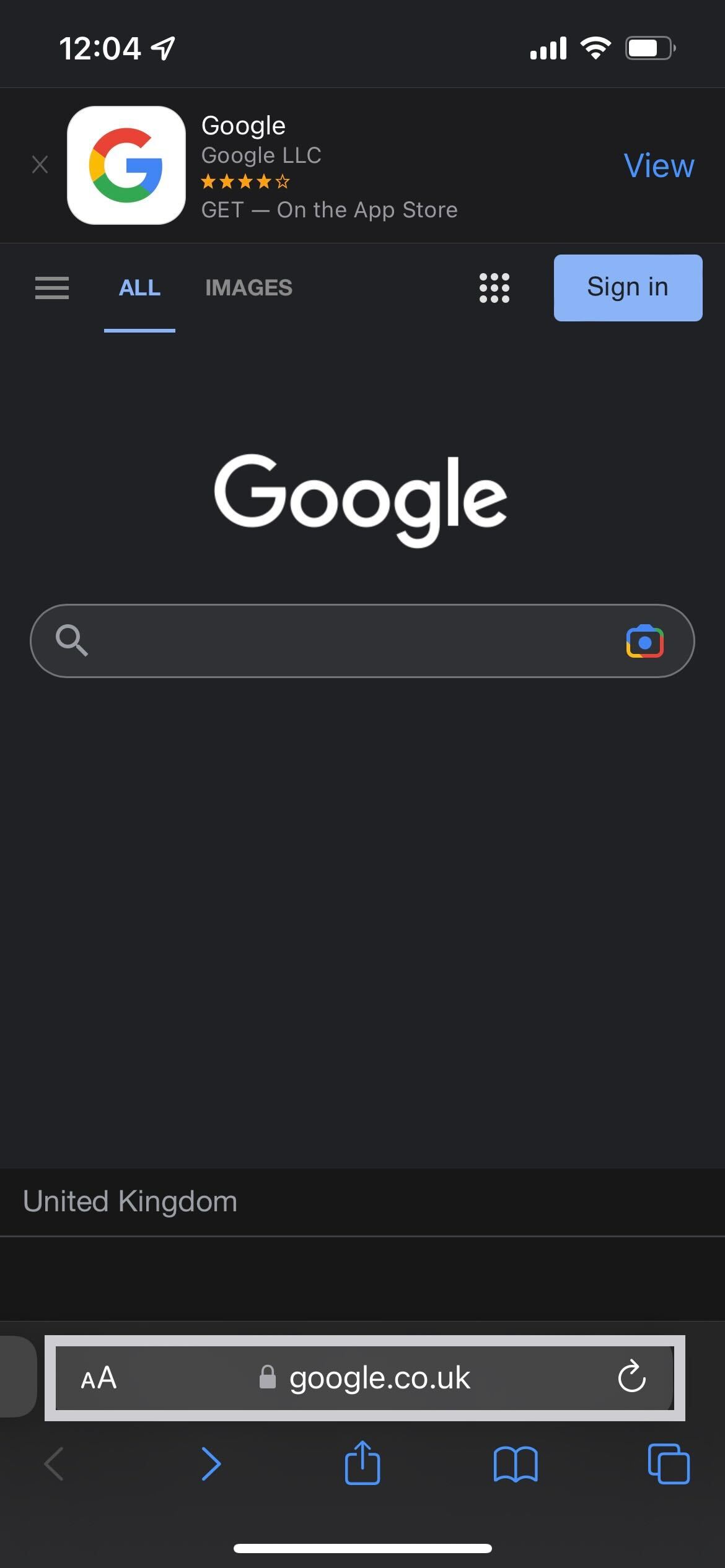
Click on the search bar in your preferred app.
-
Step
3Type in xbox.com/play and press Enter
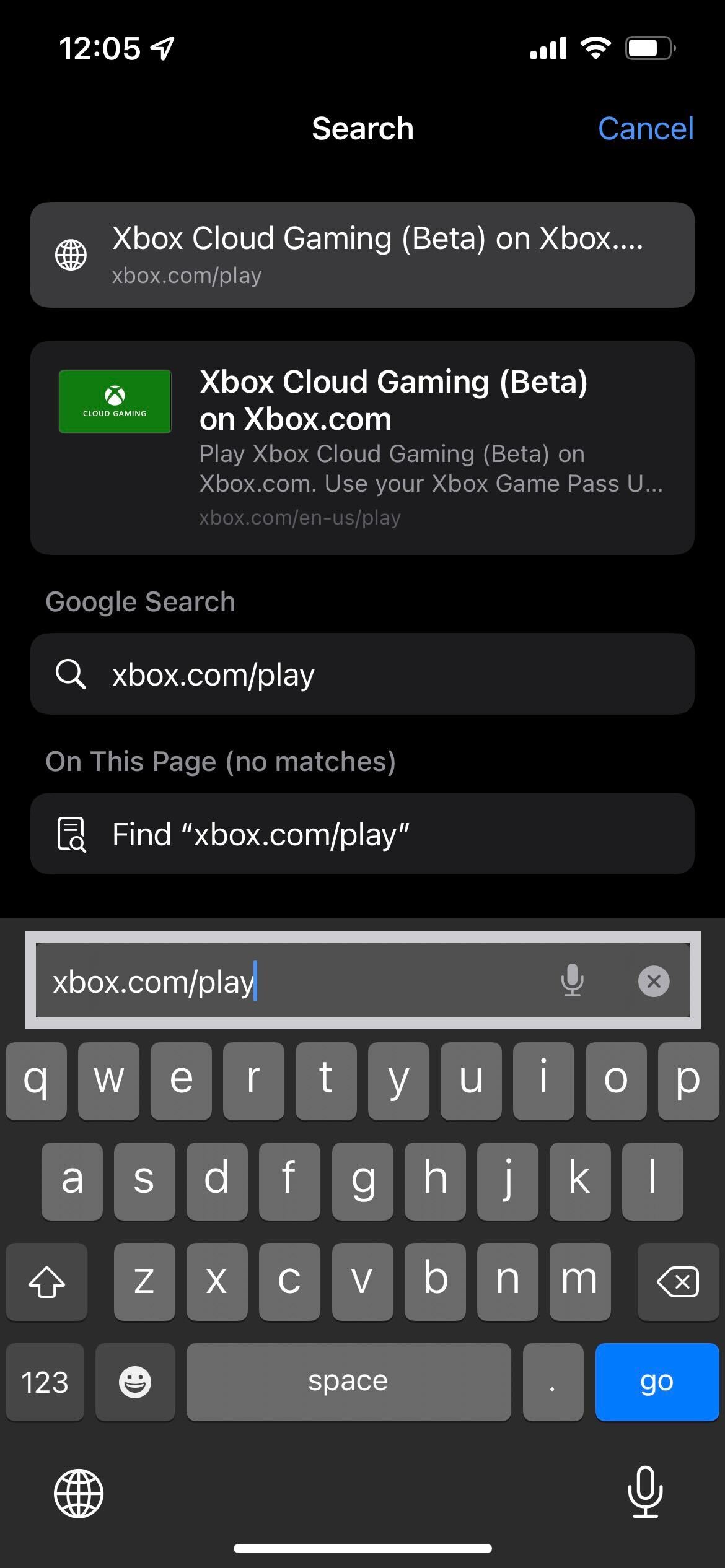
Type in the words ‘xbox.com/play’ and press Enter to be taken to the Xbox website.
-
Step
4Click on Fortnite
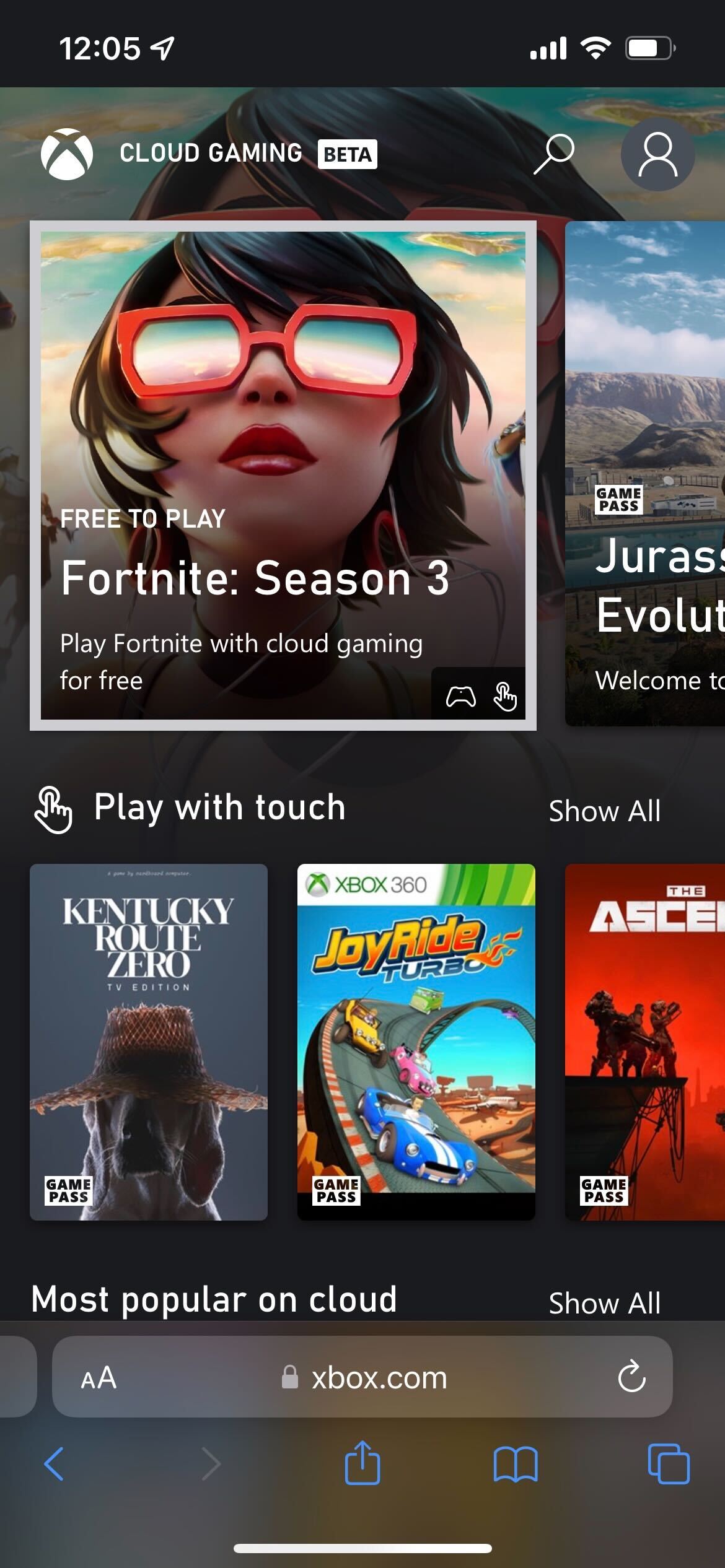
Once on the website, find Fortnite and click on it.
-
Step
5Press Get Ready to Play
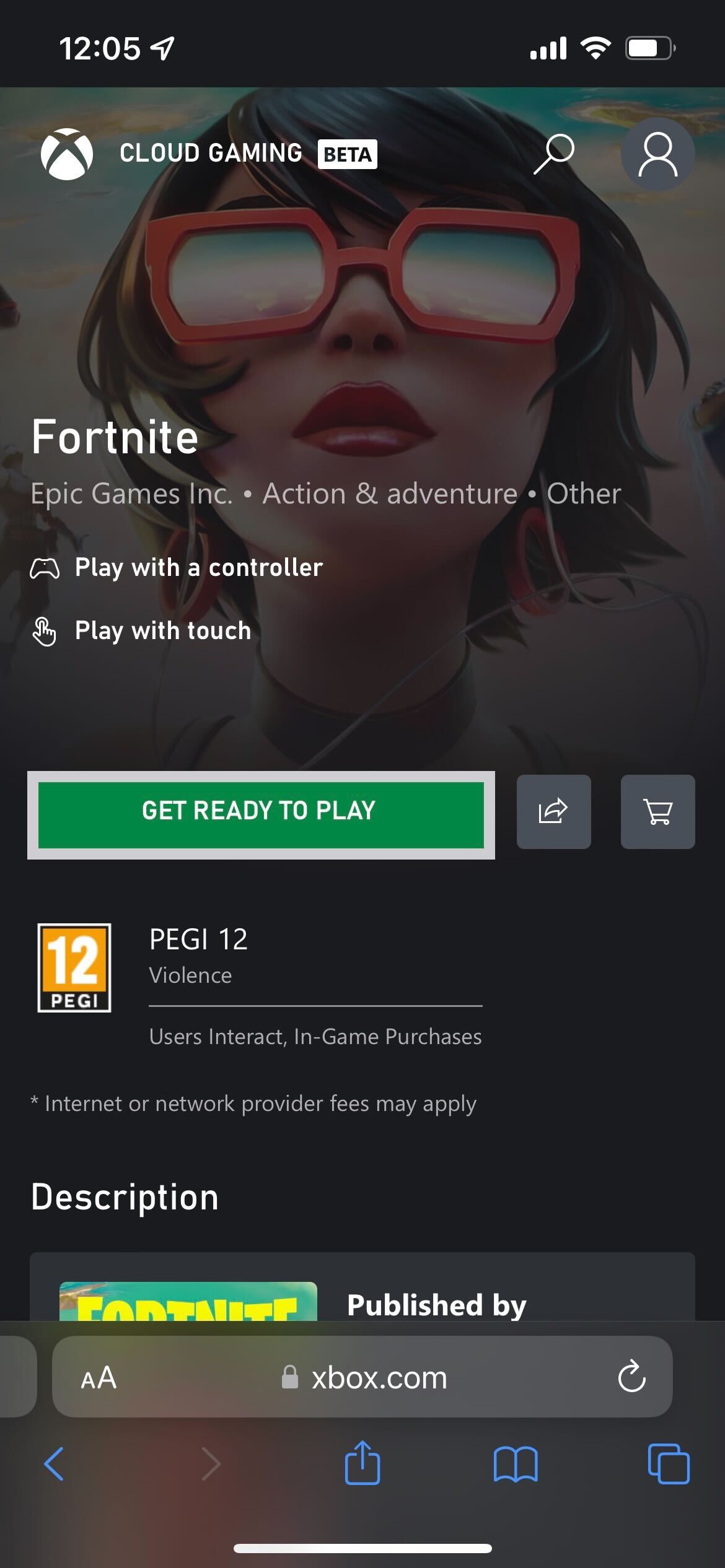
Press the green button that says Get Ready to Play to continue the process.
-
Step
6Click the Share button
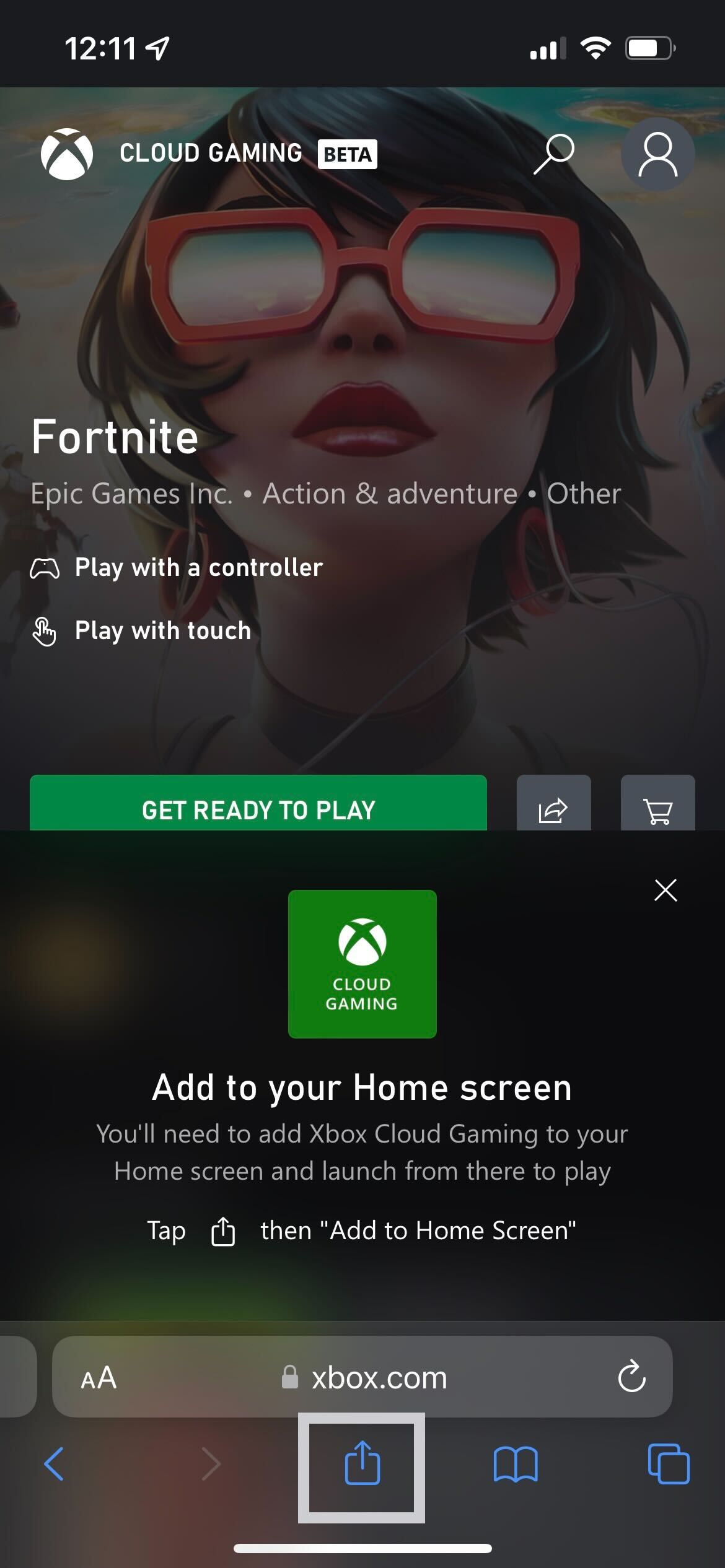
Press the Share button. It looks like an arrow coming out of a square and it sits in the middle of the bottom navigation menu in Safari. This may look different in the Chrome app.
-
Step
7Press Add to Home Screen
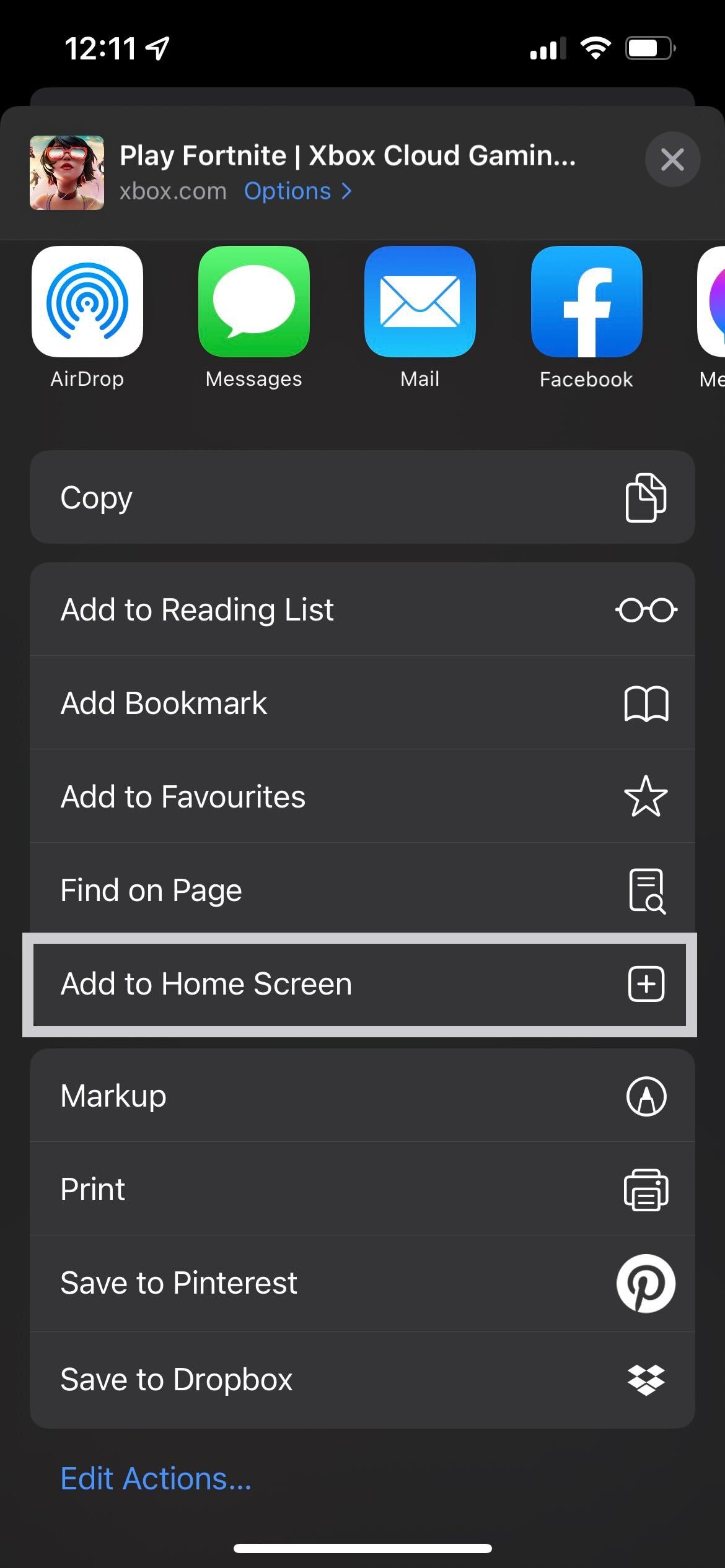
Once you have clicked on the Share button a new menu will appear. Look for the button that says Add to Home Screen and click on it.
-
Step
8Press Add
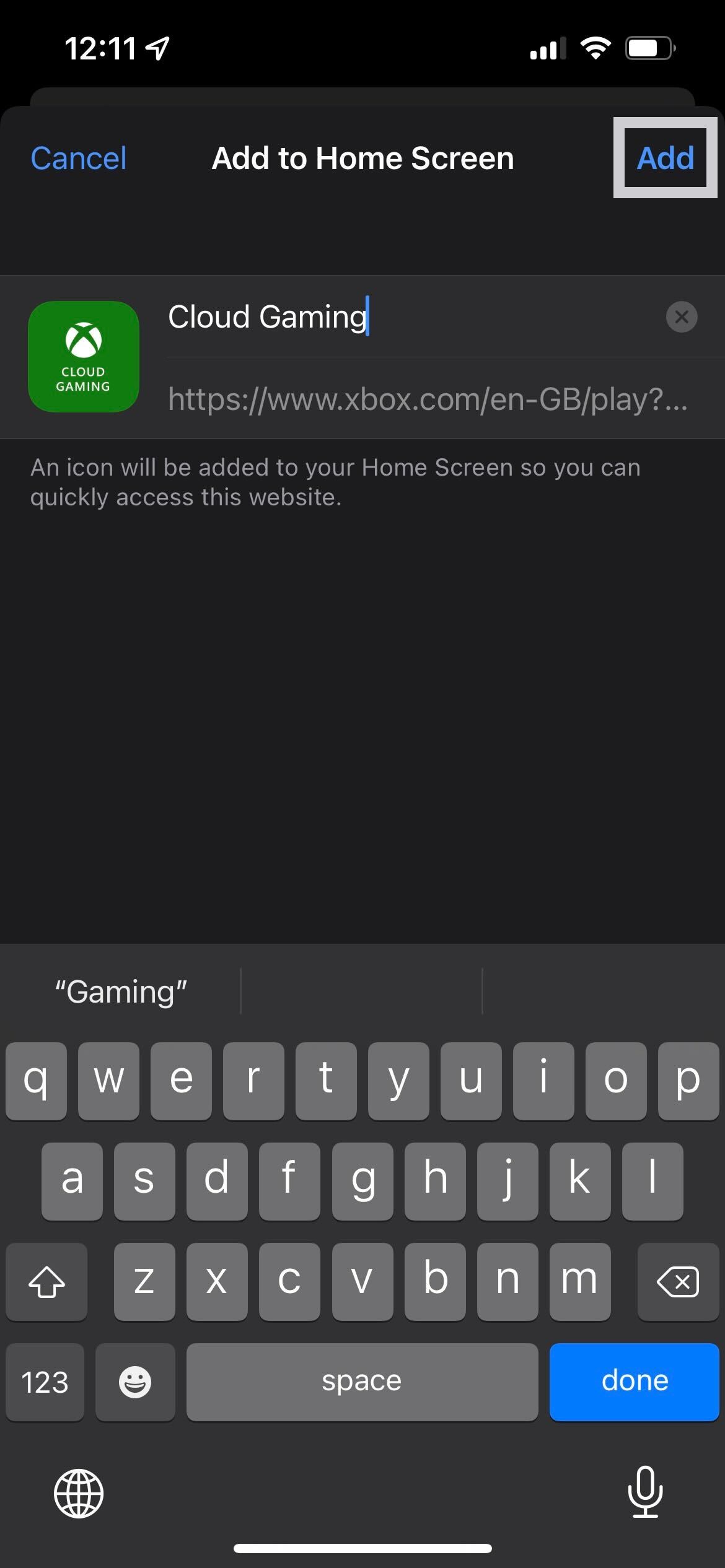
Press the Add button, it lives in the top-right corner.
-
Step
9Enter the Cloud Gaming app
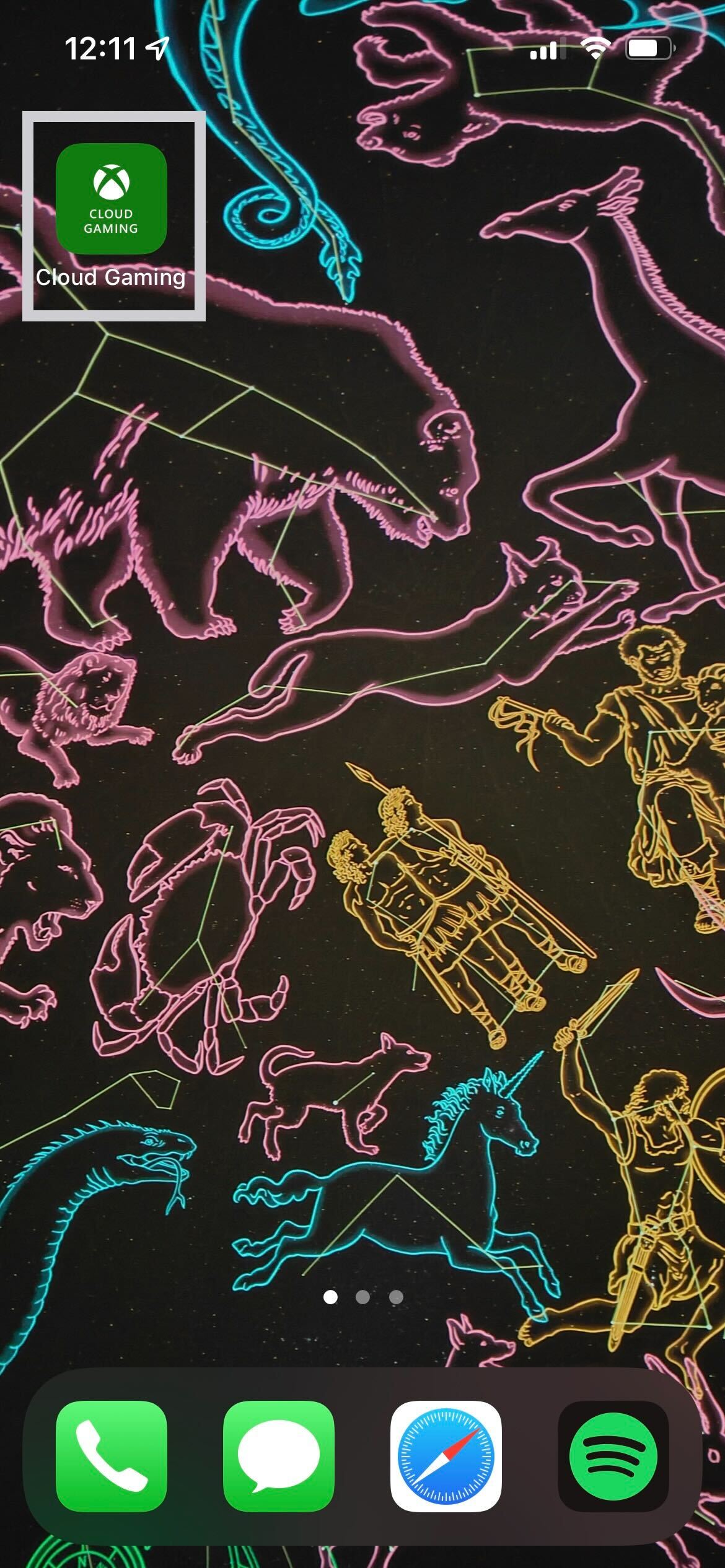
Now, leave the Safari app and find the Cloud Gaming app on your home screen. When you have found it, click on it.
-
Step
10Press Sign in
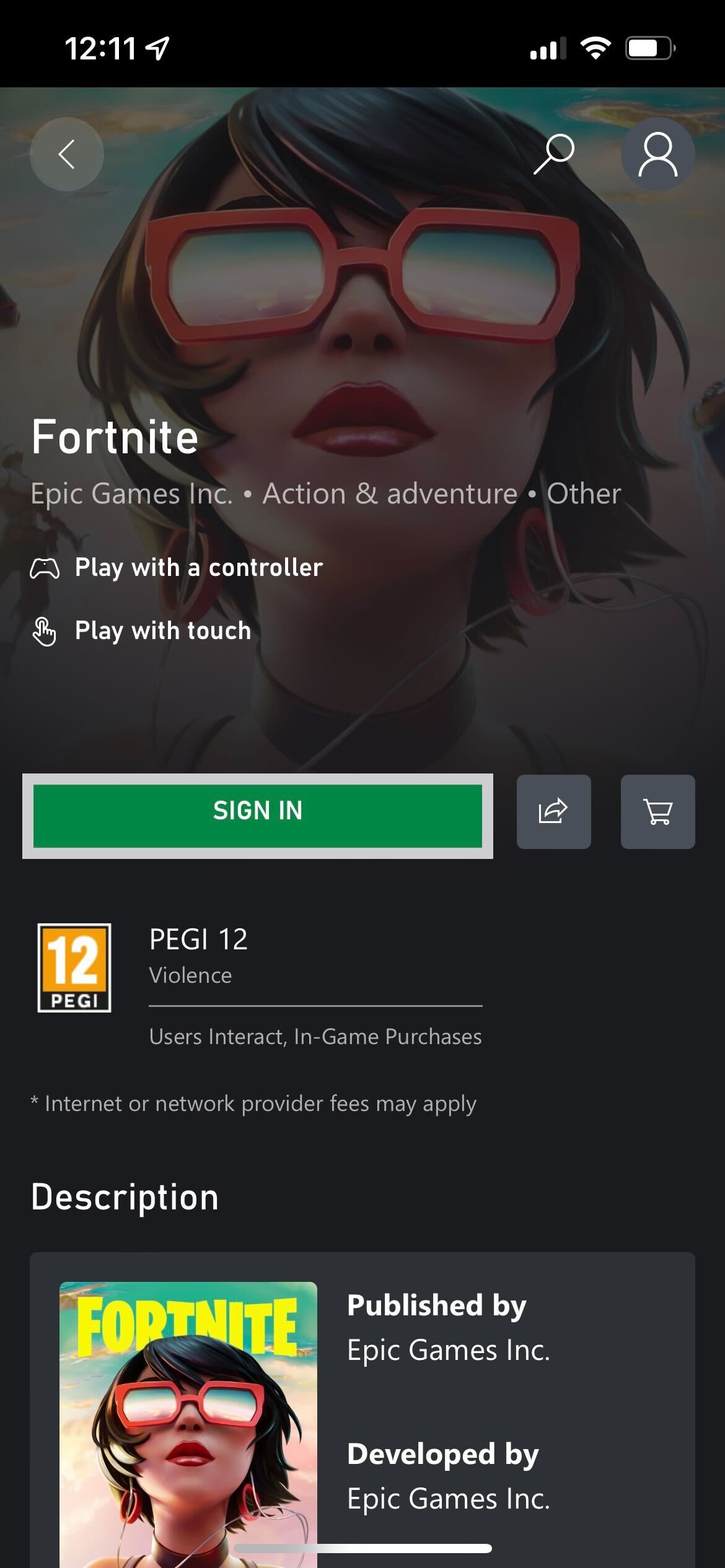
Press the Sign in button to continue.
-
Step
11Sign into your Microsoft account
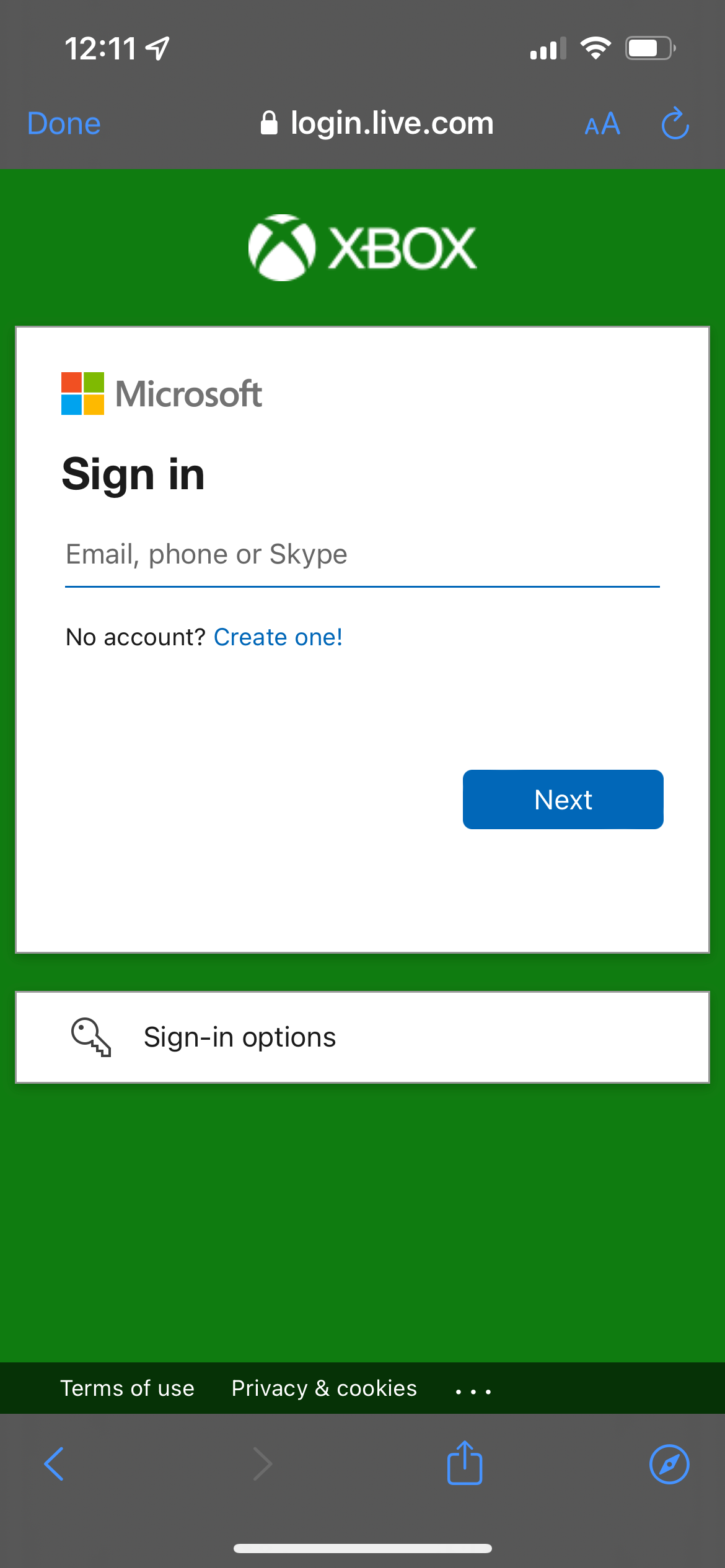
Sign into your Microsoft account. If you do not have a Microsoft account, you will need to create one. It is free to do.
-
Step
12Press Play
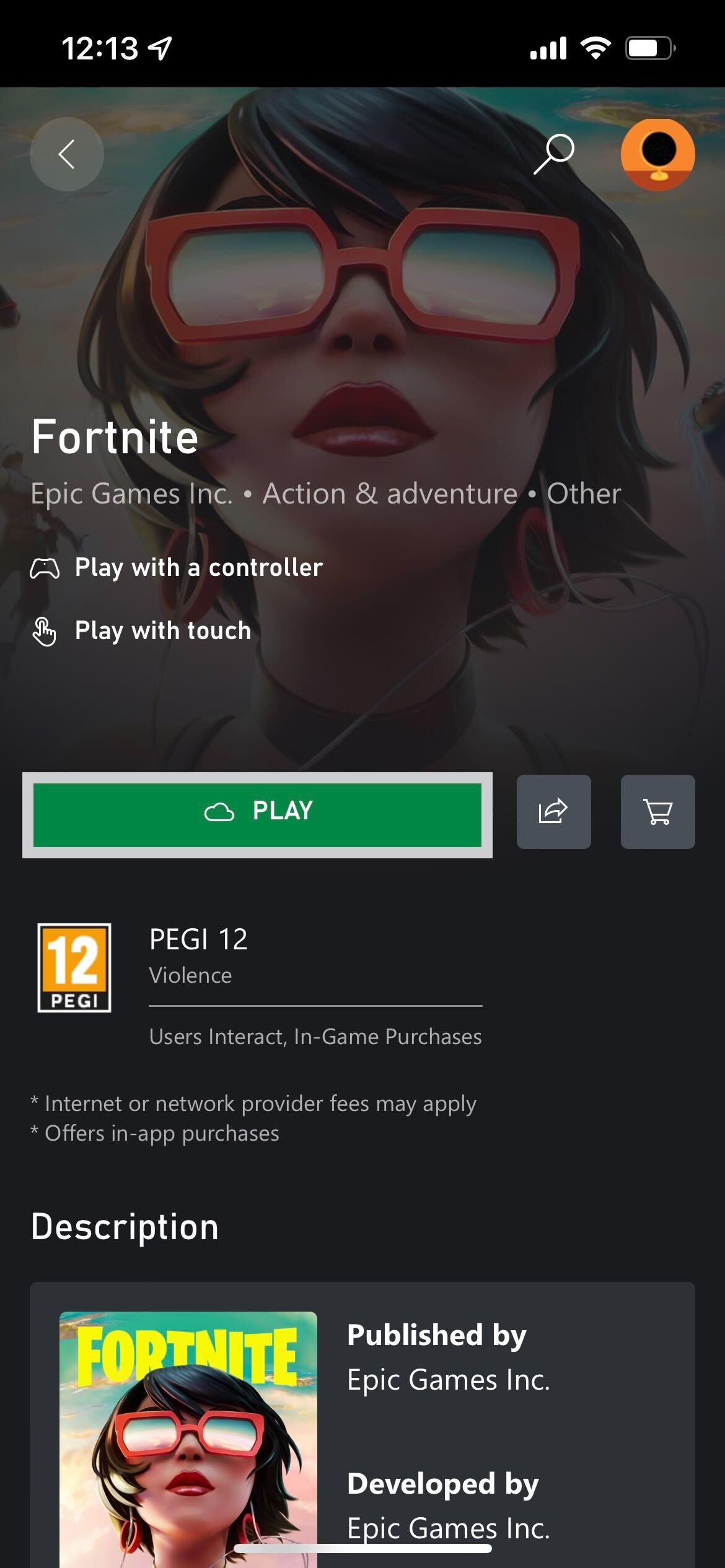
Once you have successfully signed in, click on the Play button under Fortnite to start loading up the game.
FAQs
Yes, you can connect an Xbox controller to your iPhone via Bluetooth and then play the game using it for a more streamlined experience.
No, though you will need a free Microsoft account to play.
Please use our Creator CODE: MOKOKIL1
Please follow and like us:


